How Does the "Undo Send" Feature Work in Gmail?
Have you ever sent an email and then wished you could stop it? Maybe you made a mistake, sent it to the wrong person, or just changed your mind as soon as you pressed Send.
On apps like WhatsApp, Instagram, or Reddit, you can quickly edit or delete a message if you make a mistake. These apps make it easy to fix errors right away. But with email, it used to be different: once you sent a message, it usually could not be changed or taken back.
For a long time, sending an email happened instantly. After you clicked Send, your email left your control and started going to the other person immediately. There was no way to stop it or bring it back, even if you realized right away that there was a problem.
Gmail fixed this problem in a smart way. When you send an email, Gmail does not send it right away. Instead, it waits a few seconds before really sending your message. During these few seconds, you can stop the email from being sent if you notice a mistake. This is called the Undo Send feature.
How "Undo Send" Works
It may look like Gmail is pulling your email back after you sent it, but that's not what happens. Gmail just does not send your email immediately.
Getting an email back after you send it is almost impossible. Emails travel over the internet very quickly; most reach the other person's inbox in just a few moments. They go through many computers along the way, so stopping an email everywhere is very hard. Most people see the message soon after it arrives, so by the time you want to take it back, it is usually too late.
By waiting a short time before really sending your email, Gmail makes it much easier for you to stop the process if you need to.
What Is Happening Behind the Scenes
When you click Send in Gmail, your email does not leave right away. The message sits in a waiting area on Gmail's servers for a short time. You can choose how long Gmail waits: 5, 10, 20, or 30 seconds, with 5 seconds as the default.
You can change this time in your Gmail settings if you want more time to notice mistakes.
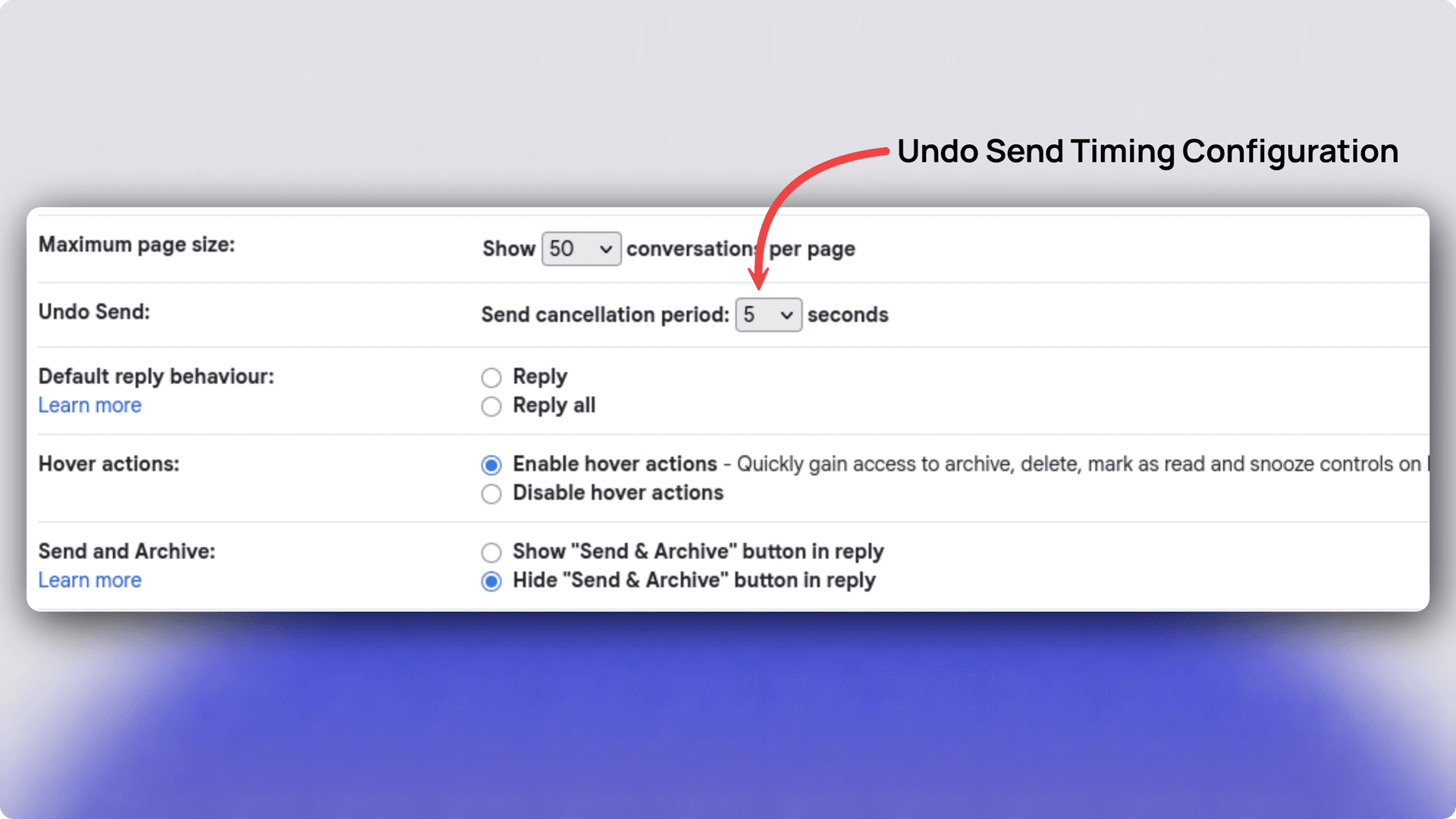
Undo button appears
While your email is waiting, Gmail shows a pop-up at the bottom-left of your screen. It usually says:
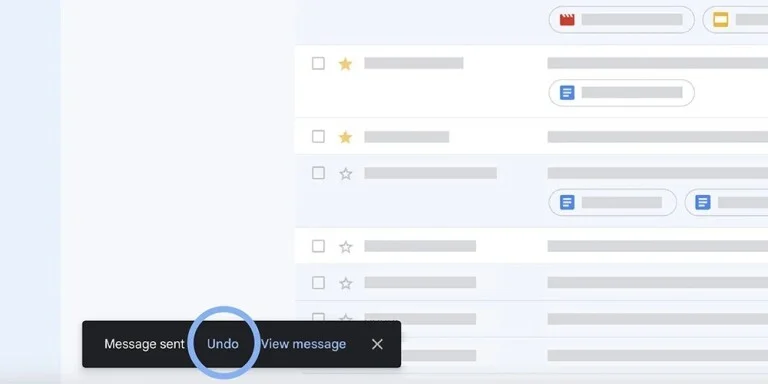
Your message has been sent. Undo | View Message
If you notice a problem, you can click Undo. Gmail will then stop the email from sending and put it back in your Drafts folder. You can then change it, delete it, or do whatever you want.
Sending the email
If you don't click Undo during the holding time, Gmail will then send your email to the receiver like normal. After that, the email is gone, and you can't take it back, because it is outside Gmail's control.
This system is simple but very effective. Because Gmail waits a few seconds before really sending your email, you have a chance to fix mistakes. This makes the Undo Send feature both easy to use and useful.